

Edit source and translation simultaneously in a split-screen editor — the killer feature for multilingual content.
The problem with traditional translation workflows
Most CMS platforms treat translation as an afterthought. You write content in one language, export it, send it to a translator (or an AI), import the result, and hope nothing breaks. You can't see source and translation together. You can't compare paragraph by paragraph. And when you update the source, you have no idea which translations are stale.
Side-by-side editing
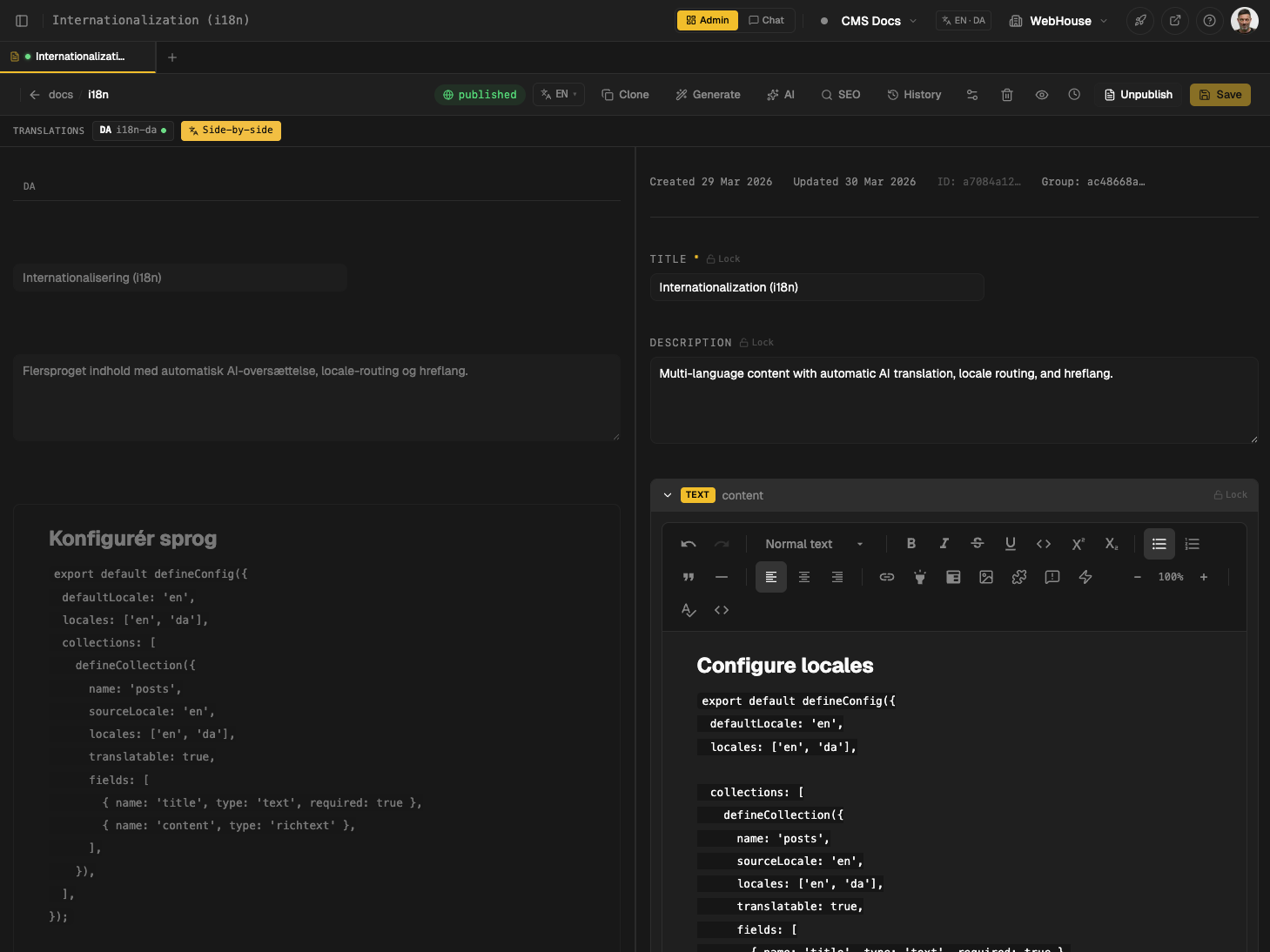
@webhouse/cms solves this with a built-in split-screen editor. Open any document that has translations, click Side-by-side, and you see source and translation side by side — field by field, paragraph by paragraph.
What you see
The editor splits into two panels:
- Left panel — the translation you're editing (e.g. Danish)
- Right panel — the source document (e.g. English), read-only for reference
Both panels show the same fields in the same order: title, description, content, and all custom fields. You scroll them together. You compare them line by line.
How to use it
- Open any document in the editor
- If translations exist, you'll see a TRANSLATIONS bar at the top showing linked locale versions
- Click Side-by-side to enter split-screen mode
- The source language appears on the right, your translation on the left
- Edit the translation while reading the source — no tab switching, no copy-pasting
Translation groups make it work
The magic behind side-by-side editing is the translationGroup field. Every document that is a translation of another shares the same UUID:
// English source
{
  "slug": "getting-started",
  "locale": "en",
  "translationGroup": "a1b2c3d4-..."
}

// Danish translation
{
  "slug": "getting-started-da",
  "locale": "da",
  "translationGroup": "a1b2c3d4-..."
}
CMS admin reads the translationGroup and finds all documents that share it. That's how it knows which documents are translations of each other — and how it can show them side by side.
Creating translations
From the editor
- Open a document
- Click + Add translation in the translations bar
- Choose the target locale (e.g. Danish)
- The CMS creates a new document with:
- The same translationGroup UUID
- AI-translated content (if an AI provider is configured)
- The new translation opens in the editor, ready for review
From a script
import { randomUUID } from 'crypto';

// Create the source document
const sourceDoc = {
  slug: "my-page",
  locale: "en",
  translationGroup: randomUUID(),
  status: "published",
  data: { title: "My Page", content: "Hello world" },
};

// Create the translation with the SAME translationGroup
const translationDoc = {
  slug: "my-page-da",
  locale: "da",
  translationGroup: sourceDoc.translationGroup, // ← same UUID!
  status: "published",
  data: { title: "Min side", content: "Hej verden" },
};
Via AI
# The CMS AI agent can translate documents automatically
npx cms ai rewrite posts/hello-world "Translate to Danish"
Or use the built-in translation agent from the admin UI — it respects field types, preserves markdown formatting, and links the new document with the correct translationGroup.
Locale strategy
How locales appear in URLs depends on your site's localeStrategy setting:
| Strategy | English URL | Danish URL | Best for |
|---|---|---|---|
prefix-other | /blog/my-post | /da/blog/my-post | Most sites |
prefix-all | /en/blog/my-post | /da/blog/my-post | Explicit locale |
none | /blog/my-post | /blog/my-post-da | Locale in slug |
Configure in CMS admin → Site Settings → Language.
Why this matters
For content teams
- No context switching between tabs or windows
- See exactly what the source says while you translate
- Catch mismatches instantly (missing paragraphs, wrong tone, outdated sections)
For developers
translationGroupis a simple UUID — no complex relational schema- Documents are independent files — no parent/child coupling
- Works with any storage adapter (filesystem, GitHub, SQLite, Supabase)
- Easy to script: just share the UUID between documents
For AI agents
- AI translation agents create properly linked documents automatically
- The translation agent reads the source via
translationGroup, translates field by field - AI Lock ensures human-edited translations are never overwritten by AI
Configuration
cms.config.ts
defineCollection({
  name: 'posts',
  label: 'Blog Posts',
  sourceLocale: 'en',
  locales: ['en', 'da'],
  fields: [
    { name: 'title', type: 'text', required: true },
    { name: 'content', type: 'richtext' },
  ],
})
Site settings
- Default language: English (en)
- Supported languages: add Danish (da), or any BCP 47 locale
- Locale strategy: choose how URLs are structured
That's it. No plugins, no third-party translation management. Just translationGroup and the built-in editor.