

Deploy @webhouse/cms with Docker — two options: pre-built image from GHCR, or custom Dockerfile for your site.
The CMS admin is available as a pre-built Docker image on GitHub Container Registry. There are two ways to run it:
- Option A: Pre-built image — pull and run in 2 minutes, includes a demo site out of the box
- Option B: Custom Dockerfile — build your own image with site + CMS bundled together
Option A: Pre-built image (recommended)
The fastest way to get started. The image includes a complete demo site (18 documents, English + Danish) so you can explore the CMS immediately.
Prerequisites
- Docker installed on your machine or server
- That's it.
Run it
docker run -d \
  --name cms \
  -p 3010:3010 \
  -e ADMIN_EMAIL=you@example.com \
  -e ADMIN_PASSWORD=your-secure-password \
  ghcr.io/webhousecode/cms-admin:latest
Open http://localhost:3010 and log in.
Docker pulls the image automatically on first run. On first boot, the CMS seeds a demo site:
✦ First boot — seeding CMS Demo site...
✓ CMS Demo site ready (18 documents, EN + DA)
✓ Open http://localhost:3010 to get started
Explore the demo
The demo site includes:
- 3 collections: Pages, Posts, Globals
- 18 documents in English and Danish
- i18n with translation groups and locale switcher
- Rich text content with headings, links, and formatting
Edit content, create new documents, try AI features — everything works out of the box.
Step 3: Connect your own content (optional)
When you're ready to use your own site, you have two options:
A) Mount a local directory:
docker run -d -p 3010:3010 \
  -v $(pwd)/my-site:/site \
  -e ADMIN_EMAIL=you@example.com \
  ghcr.io/webhousecode/cms-admin:latest
B) Connect a GitHub repo (recommended for production):
- Go to Site Settings in the admin
- Click Add Site and choose GitHub adapter
- Connect your GitHub account (OAuth)
- Select your repo containing
cms.config.ts - Content is now synced — edits in CMS push to GitHub, new containers pull from GitHub
How content persistence works
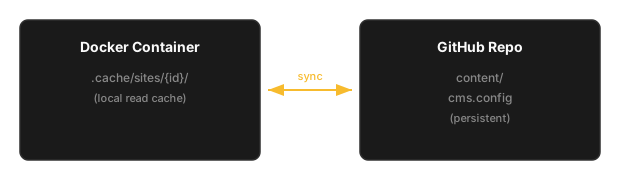
- GitHub repo is the source of truth — your content survives container restarts, upgrades, and redeployments
- Local cache (
.cache/sites/{id}/) gives fast reads — rebuilt automatically from GitHub on startup - New
docker run= fresh container, empty cache, pulls content from GitHub within seconds - Edits in CMS write to GitHub immediately — every save is a Git commit
Step 4: Deploy to a cloud server
The same docker run command works on any server. For Fly.io:
# Install flyctl
curl -L https://fly.io/install.sh | sh

# Create app in Stockholm (EU)
fly apps create my-cms --region arn

# Set secrets
fly secrets set \
  ADMIN_EMAIL=you@example.com \
  ADMIN_PASSWORD=$(openssl rand -hex 16) \
  -a my-cms

# Deploy the pre-built image directly
fly deploy \
  --image ghcr.io/webhousecode/cms-admin:latest \
  --region arn \
  -a my-cms
Your CMS admin is now live at https://my-cms.fly.dev.
Upgrading
To upgrade to a new CMS version:
# Local
docker pull ghcr.io/webhousecode/cms-admin:latest
docker stop cms-admin && docker rm cms-admin
docker run -d --name cms-admin -p 3010:3010 \
  -e ADMIN_EMAIL=you@example.com \
  -e ADMIN_PASSWORD=your-password \
  ghcr.io/webhousecode/cms-admin:latest

# Fly.io
fly deploy --image ghcr.io/webhousecode/cms-admin:latest -a my-cms
Your content is safe in GitHub — the new container pulls it automatically.
Option B: Custom Dockerfile
For when you want CMS admin + your site bundled in one container, or need custom build steps.
Prerequisites
- A site project with
cms.config.ts(create one withnpm create @webhouse/cms) - Docker installed
Step 1: Create a site
npm create @webhouse/cms my-site
cd my-site
Step 2: Add a Dockerfile
Create Dockerfile in your site's root:
# ── Build CMS admin ──
FROM node:22-alpine AS cms
RUN corepack enable && corepack prepare pnpm@10 --activate
WORKDIR /build

# Clone CMS monorepo and build admin
RUN apk add --no-cache git python3 make g++ \
 && git clone --depth 1 https://github.com/webhousecode/cms.git . \
 && pnpm install --frozen-lockfile \
 && pnpm --filter @webhouse/cms build \
 && pnpm --filter @webhouse/cms-ai build \
 && pnpm --filter @webhouse/cms-mcp-client build \
 && pnpm --filter @webhouse/cms-mcp-server build \
 && pnpm --filter @webhouse/cms-admin build

# ── Build your site ──
FROM node:22-alpine AS site
WORKDIR /build
COPY package*.json ./
RUN npm ci
COPY . .
RUN npm run build

# ── Runner ──
FROM node:22-alpine
RUN apk add --no-cache libc6-compat
WORKDIR /app
ENV NODE_ENV=production

# CMS Admin (standalone)
COPY --from=cms /build/packages/cms-admin/.next/standalone ./admin/
COPY --from=cms /build/packages/cms-admin/.next/static ./admin/packages/cms-admin/.next/static
COPY --from=cms /build/packages/cms-admin/public ./admin/packages/cms-admin/public

# Your site
COPY --from=site /build ./site/

# Content + config
COPY cms.config.ts ./
COPY content/ ./content/

# Start script
RUN printf '#!/bin/sh\ncd /app/admin && CMS_CONFIG_PATH=/app/cms.config.ts PORT=3010 node packages/cms-admin/server.js &\ncd /app/site && PORT=3000 node server.js &\nwait\n' > /start.sh && chmod +x /start.sh

EXPOSE 3000 3010
CMD ["/start.sh"]
Step 3: Build and run
docker build -t my-site .
docker run -d -p 3000:3000 -p 3010:3010 \
  -e ADMIN_EMAIL=you@example.com \
  -e ADMIN_PASSWORD=your-password \
my-site- Site:
http://localhost:3000 - CMS Admin:
http://localhost:3010
Step 4: Deploy to Fly.io
Create fly.toml:
app = "my-site"
primary_region = "arn"

[build]
  dockerfile = "Dockerfile"

[http_service]
  internal_port = 3000
  force_https = true
  auto_stop_machines = "stop"
  auto_start_machines = true

[[vm]]
  memory = "512mb"
  cpu_kind = "shared"
cpus = 1fly launch --no-deploy
fly secrets set ADMIN_EMAIL=you@example.com
fly secrets set ADMIN_PASSWORD=$(openssl rand -hex 16)
fly deploy --nowContent persistence in Option B
With the custom Dockerfile, content is baked into the image at build time. For persistence between deploys:
- Use a Fly.io volume to mount
/app/contentas persistent storage - Or use the GitHub adapter (same as Option A) — content lives in your repo, not in the container
- Or enable cloud backup (F95) — auto-backup to Cloudflare R2 or pCloud
Environment variables
| Variable | Required | Description |
|---|---|---|
ADMIN_EMAIL | First boot | Admin account email |
ADMIN_PASSWORD | First boot | Admin account password (generated if omitted) |
CMS_CONFIG_PATH | Option A | Path to cms.config.ts (default: /site/cms.config.ts) |
ANTHROPIC_API_KEY | AI features | Claude API key for AI writing, proofreading, translation |
GITHUB_TOKEN | GitHub adapter | Fine-grained PAT or OAuth token |
Auto-created admin account
On first boot, if ADMIN_EMAIL is set and no users exist, the CMS auto-creates an admin account:
✓ Admin account created
  Email: you@example.com
  Password: a1b2c3d4e5f6...
  ⚠ Change this after first login!
If ADMIN_PASSWORD is not set, a random password is generated and printed to the container logs:
# View the generated password
docker logs cms-admin | grep Password

# Or on Fly.io
fly logs -a my-cms | grep Password
Available image tags
| Tag | Description |
|---|---|
latest | Most recent stable release |
0.2.15 | Specific version (matches npm package version) |
# Pull specific version
docker pull ghcr.io/webhousecode/cms-admin:0.2.15

# Always use latest
docker pull ghcr.io/webhousecode/cms-admin:latest
Quick reference
| Task | Command |
|---|---|
| Pull latest | docker pull ghcr.io/webhousecode/cms-admin:latest |
| Run locally | docker run -d -p 3010:3010 -e ADMIN_EMAIL=me@x.com ghcr.io/webhousecode/cms-admin |
| View logs | docker logs cms-admin |
| Stop | docker stop cms-admin |
| Upgrade | docker pull ...latest && docker stop && docker rm && docker run ... |
| Deploy to Fly.io | fly deploy --image ghcr.io/webhousecode/cms-admin:latest |